How to Use OpenSSH on Android
Learn how to use a RaceVPN OpenSSH account on Android with a step-by-step setup guide, screenshots, troubleshooting, and FAQ.
About OpenSSH
OpenSSH tunneling uses SSH-based access to create an encrypted tunnel. It is different from full VPN protocols because it commonly depends on SSH ports, username, password, and a compatible tunneling client.
Protocol note: Compared with OpenVPN or WireGuard, OpenSSH is often used as a tunneling method rather than a full VPN protocol, and client settings depend on SSH ports and mode.
What You Need
Step-by-Step Setup
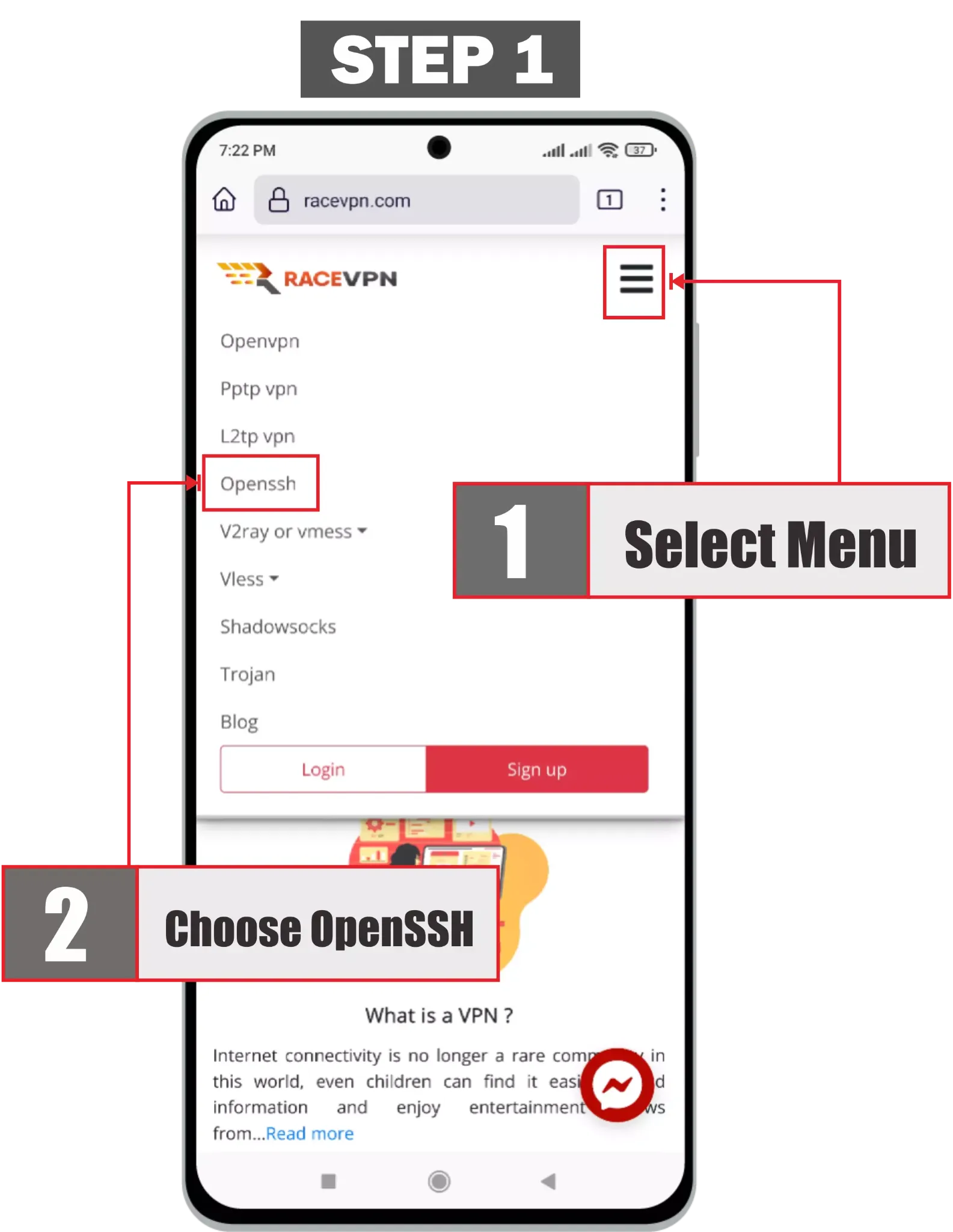
Step 1: Open the RaceVPN OpenSSH Menu
Open RaceVPN on your Android browser, open the menu, and choose OpenSSH from the available protocol list.

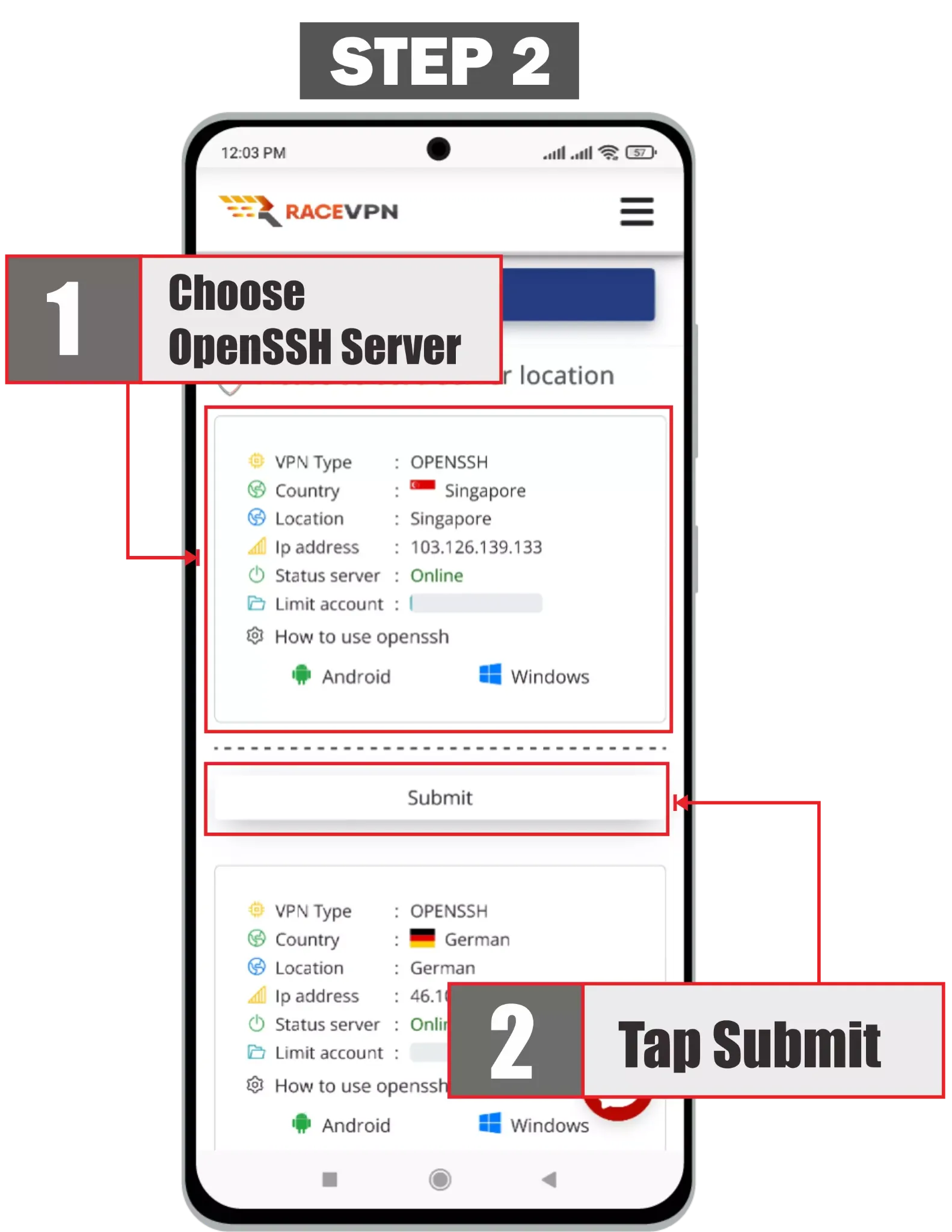
Step 2: Choose an OpenSSH Server
Choose an available OpenSSH server location and tap Submit to continue to the account creation page.
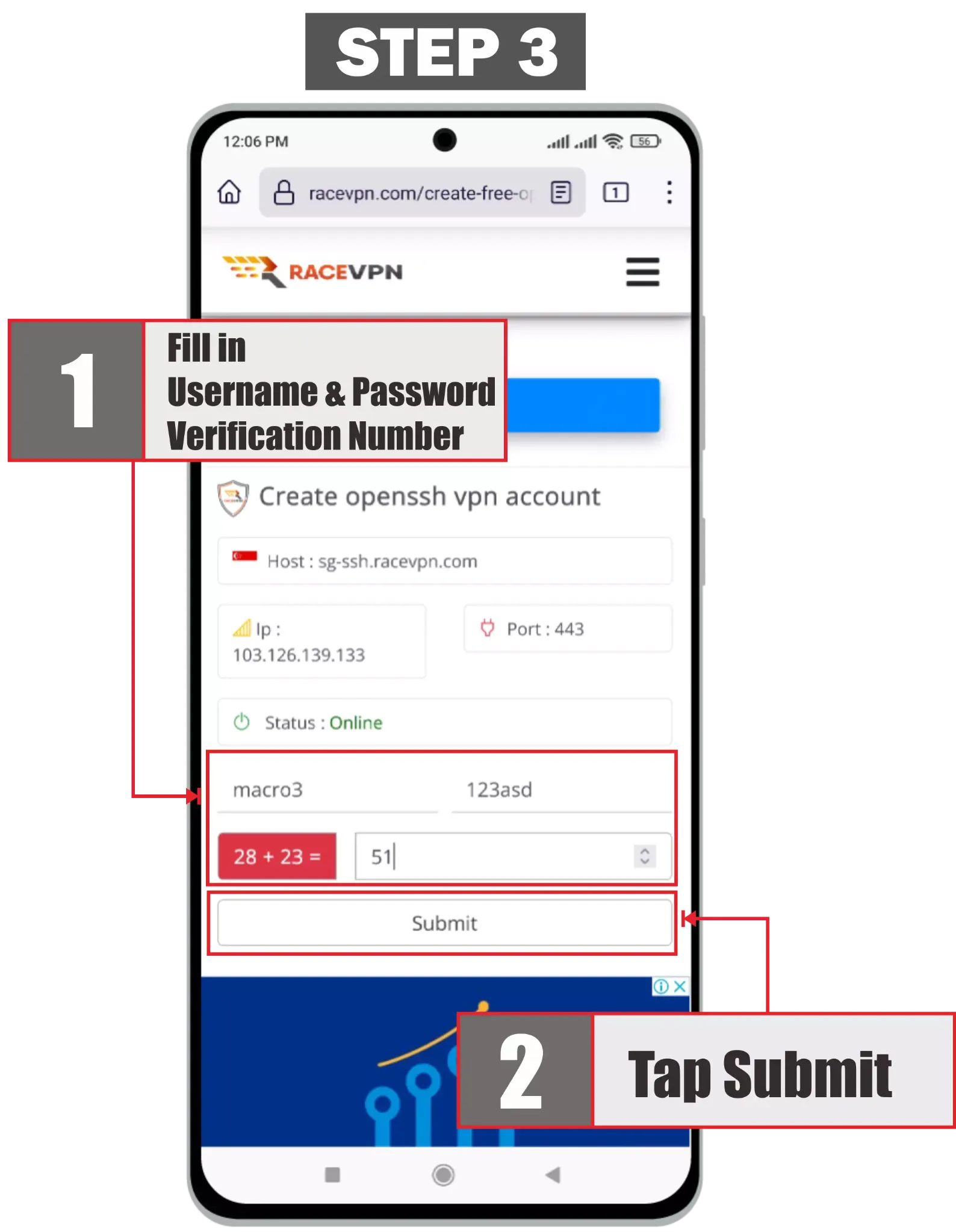
Step 3: Create the OpenSSH Account
Fill in the username, password, and verification number, then submit the form to create your OpenSSH account.
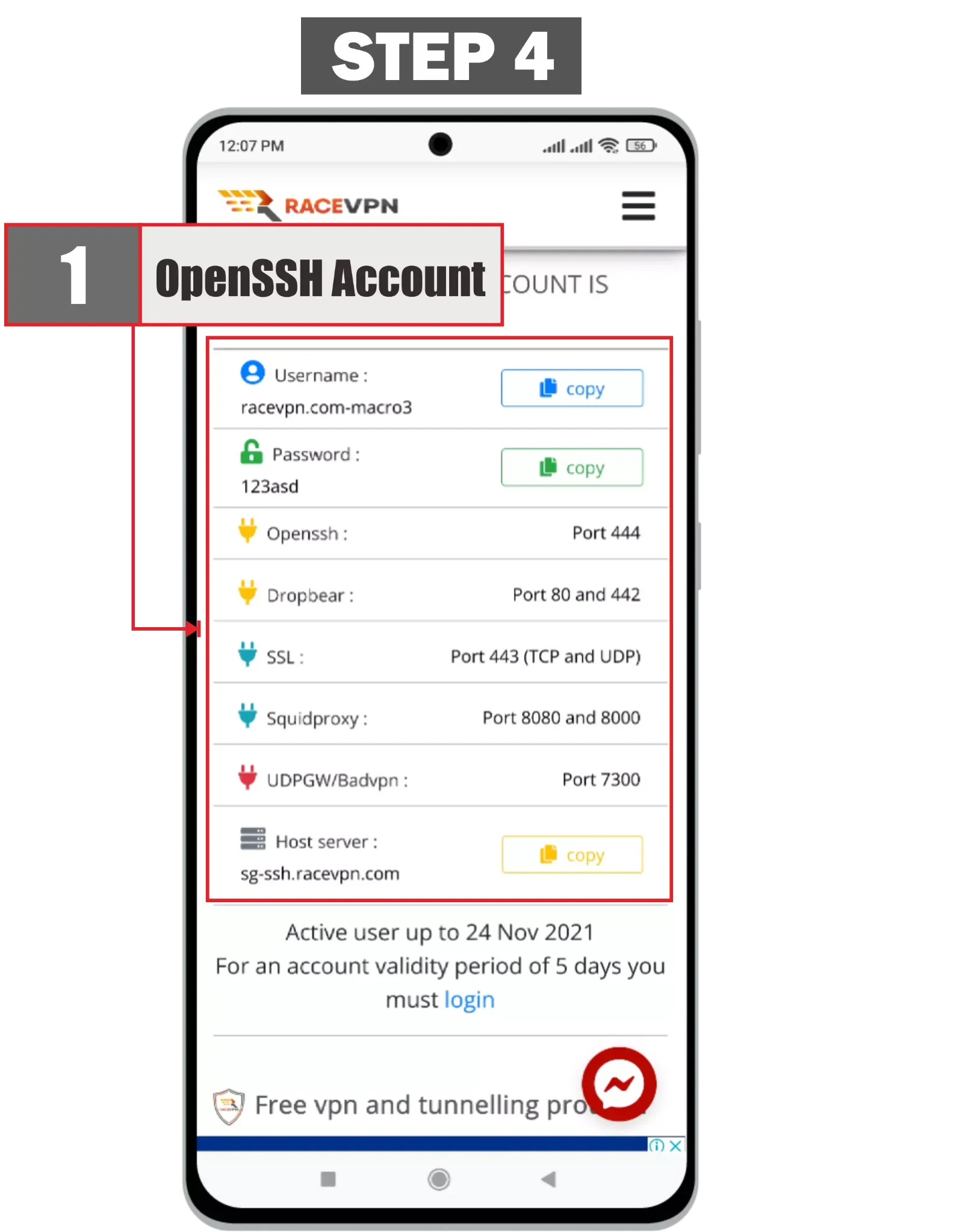
Step 4: Copy the Account Details
Copy the hostname, username, password, and available SSH ports from the account result page.
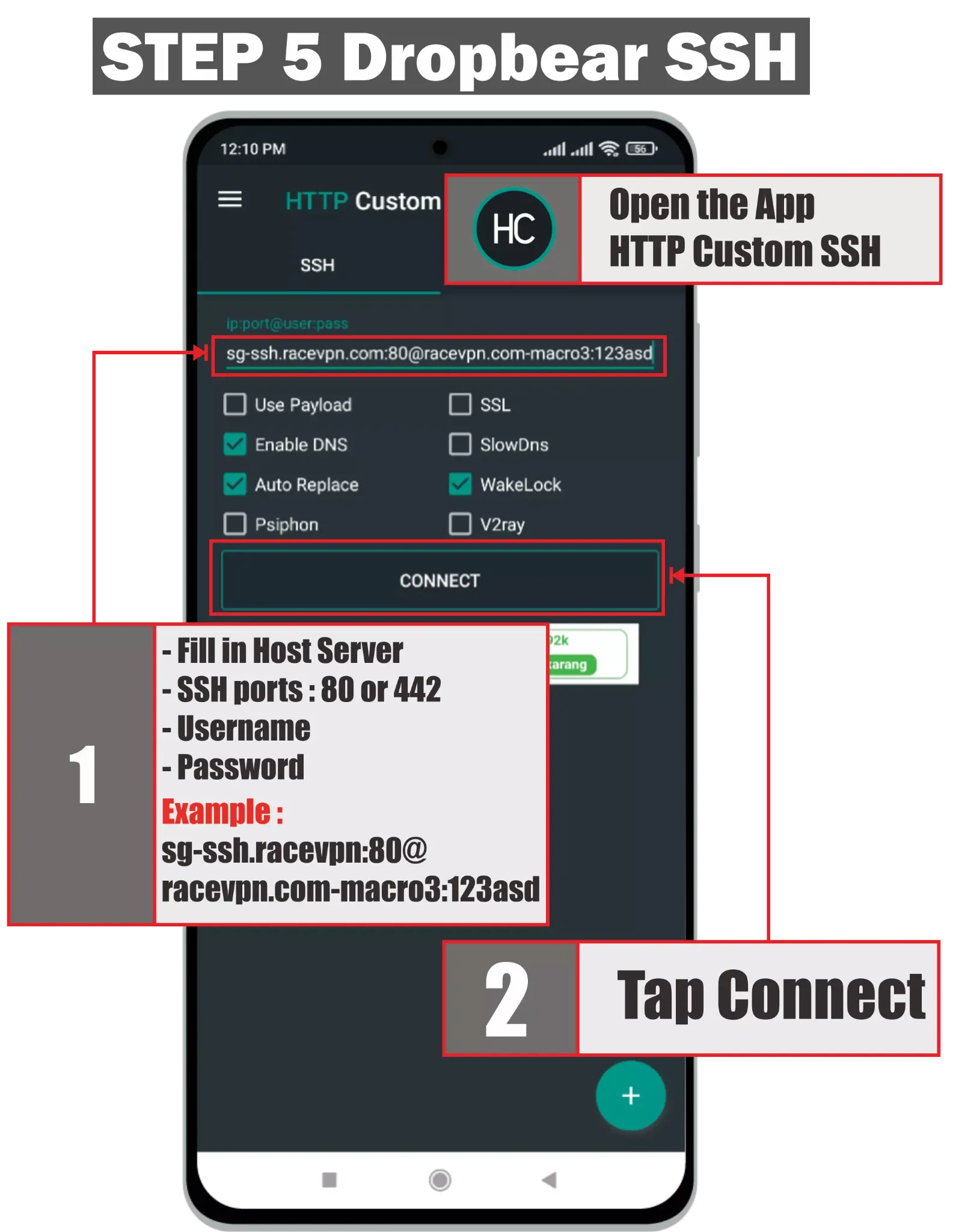
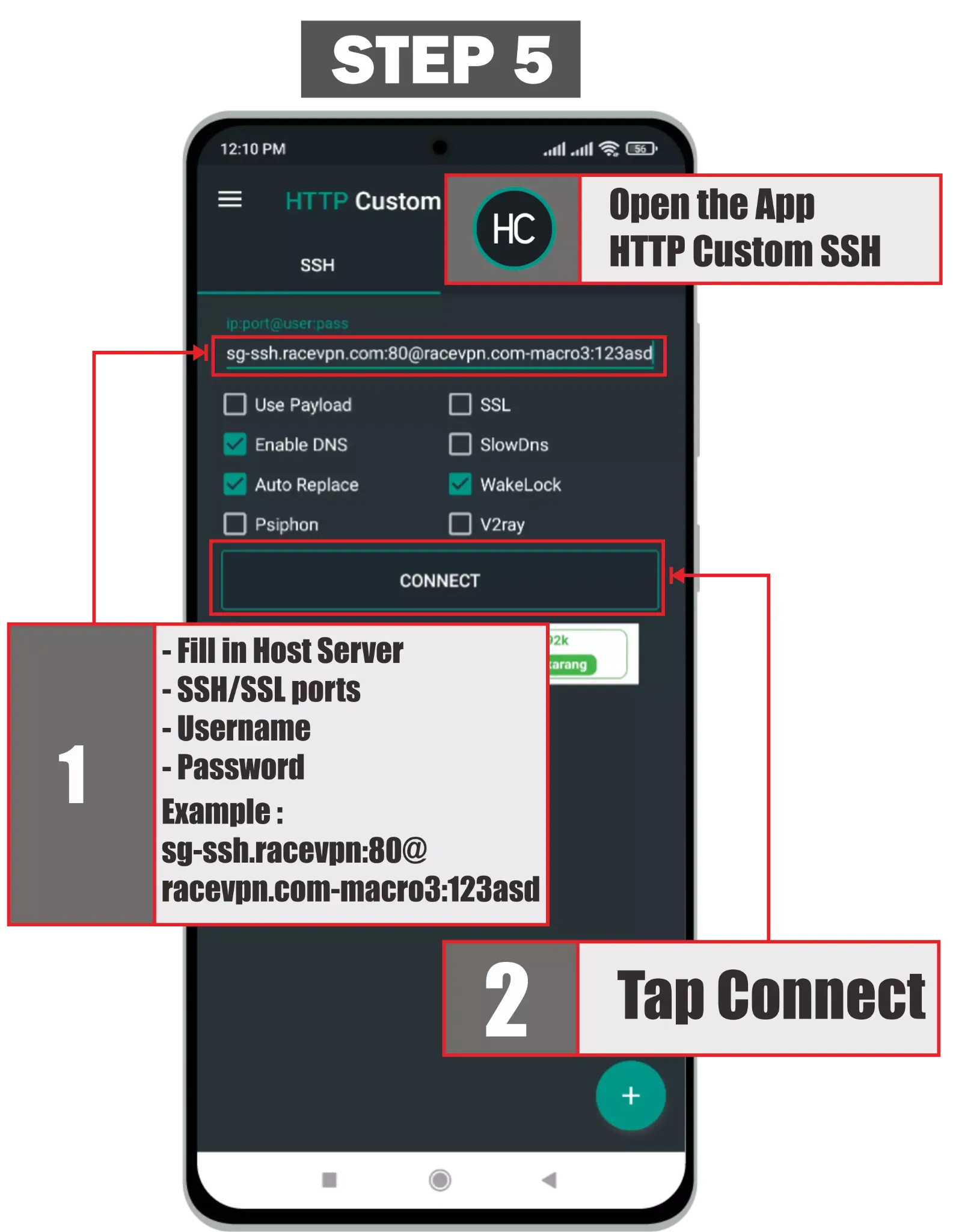
Step 5: Configure Dropbear SSH
Open your SSH tunneling client and enter the host, port, username, and password. For Dropbear mode, use the port shown on your RaceVPN result page.
Step 6: Configure SSL or Stunnel Mode
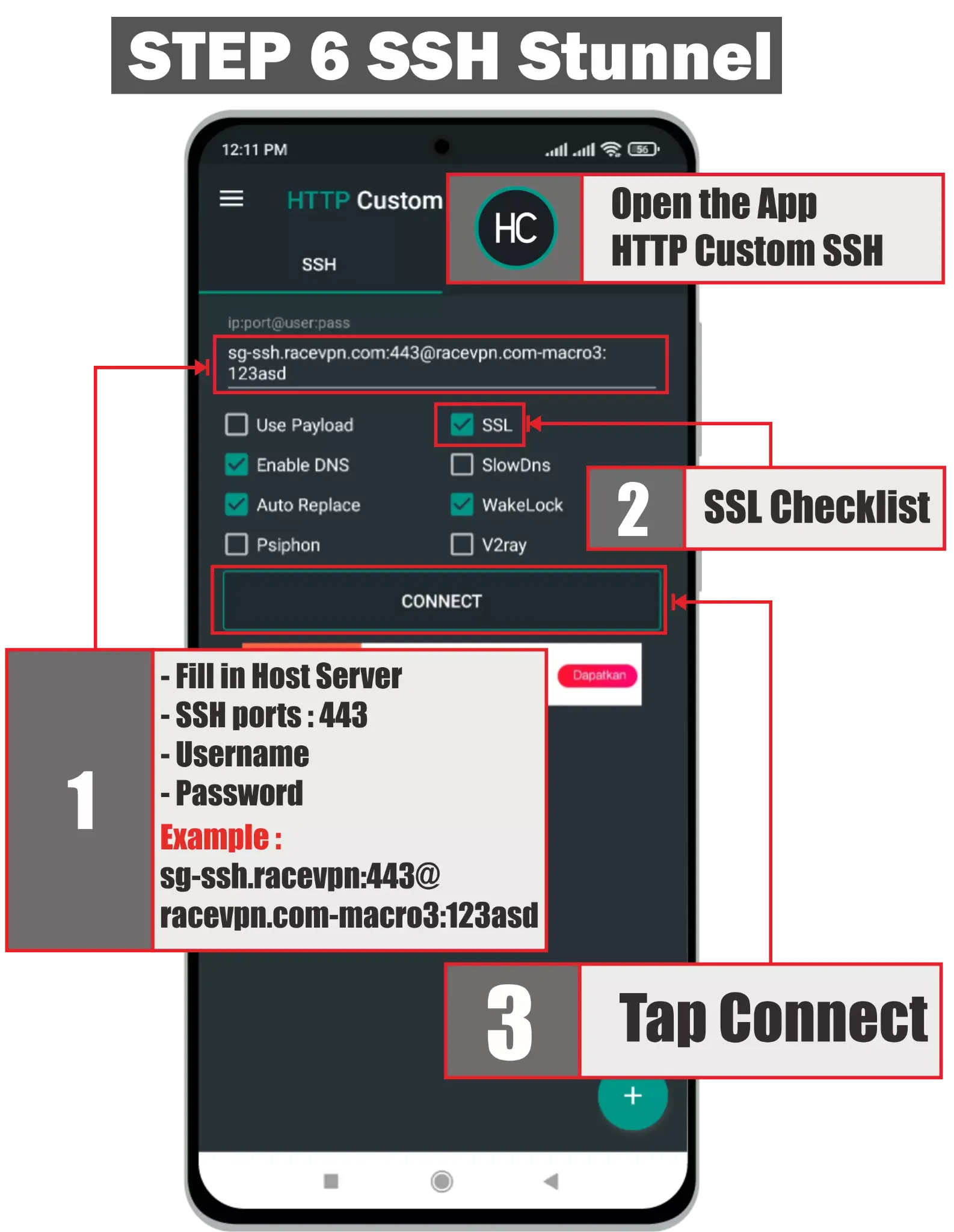
For SSL or stunnel mode, use the SSL port shown on the result page and enable the SSL option in the client if required.
Step 7: Connect the SSH Profile
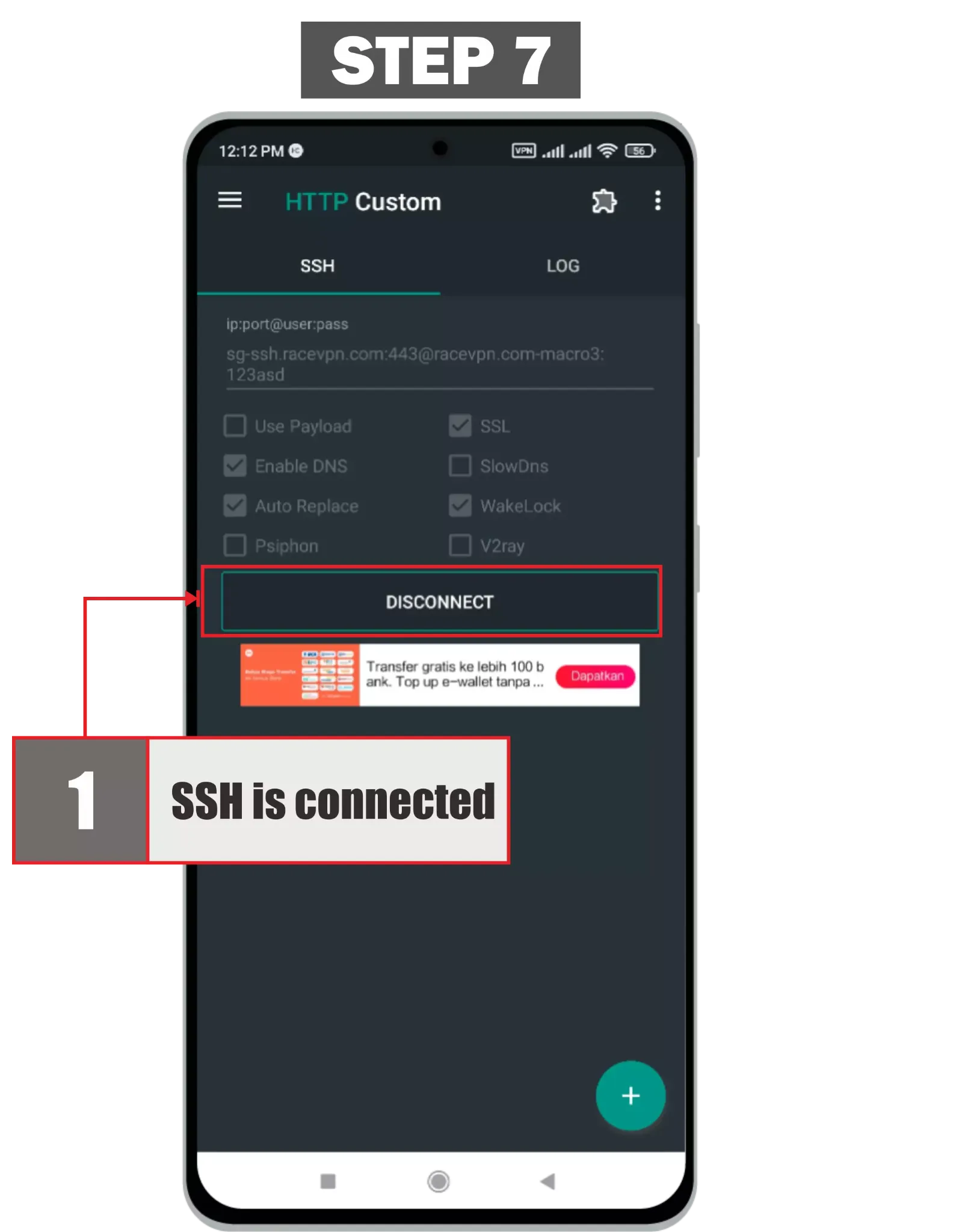
Tap Connect and wait until the client shows that the SSH tunnel is connected.
Step 8: Test Browsing
Open your browser or another app to confirm that the connection works through the SSH tunnel.
Troubleshooting
Create a Free OpenSSH Account
Need a fresh OpenSSH configuration? Visit the RaceVPN server page and create a free account from an available country server.
View Free OpenSSH ServersFrequently Asked Questions
Common questions about using OpenSSH on Android.
Can I use the same OpenSSH account on many devices?
It is better to use one account for one device only, especially when the server applies connection limits.
Why does my OpenSSH account stop working after a few days?
RaceVPN free accounts have an expiration period. Create a new account when the previous one has expired.
What should I check if OpenSSH does not connect?
Check the account expiry, server status, imported URL, client support, and whether system proxy or tunnel mode is enabled.