How to Use PPTP VPN on Android

Learn how to set up a RaceVPN PPTP VPN account on Android using the built-in VPN settings without installing an additional application.
Learn how to set up a RaceVPN PPTP VPN account on Android using the built-in VPN settings without installing an additional application.
What You Need
An active RaceVPN PPTP account.
PPTP server address from the RaceVPN account result page.
Android built-in VPN settings.
Username and password for the VPN profile.
Step-by-Step Setup
Open Android VPN Settings
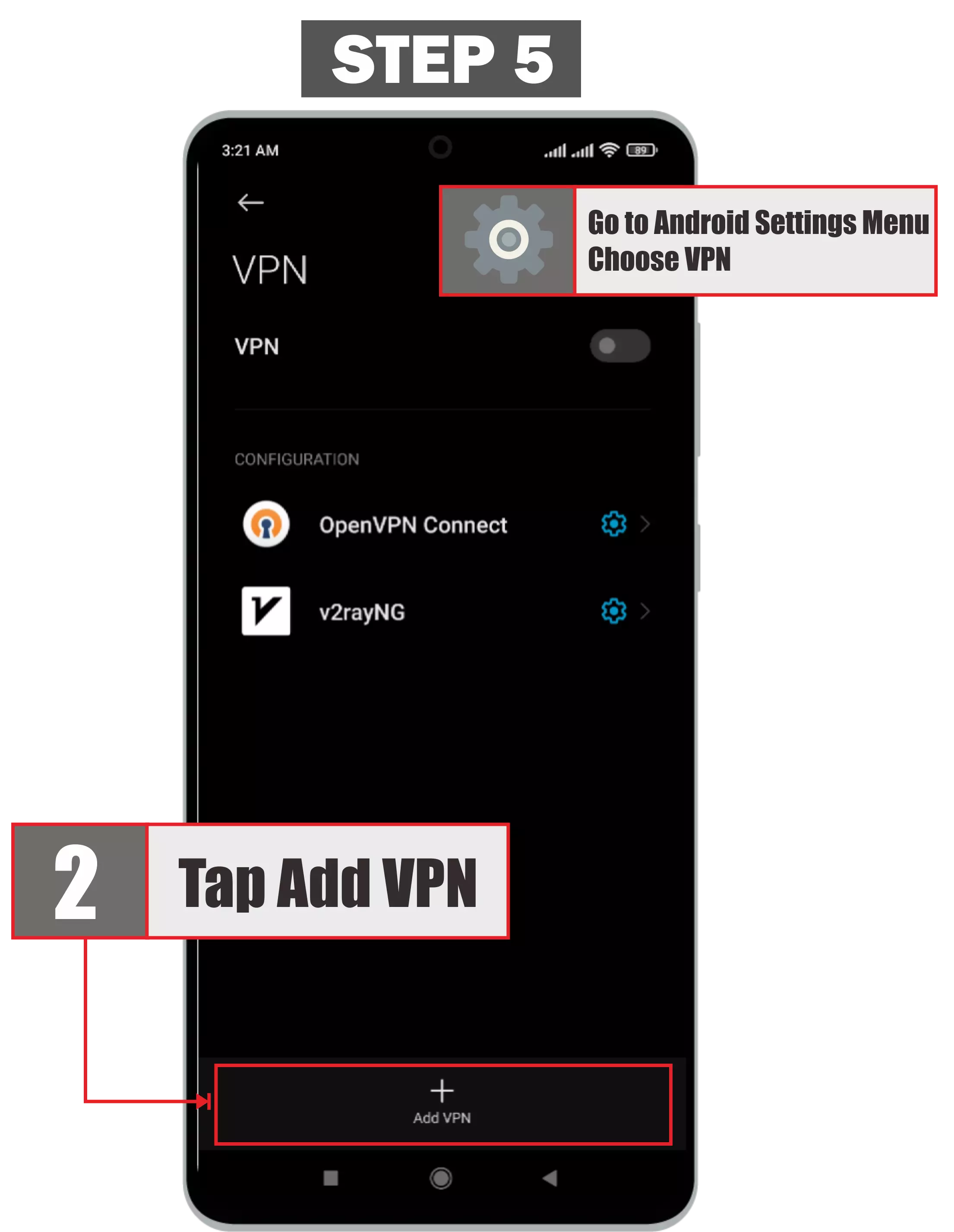
Open the Android Settings app and go to the network, connection, or VPN menu. The exact menu name can be different depending on your phone brand.
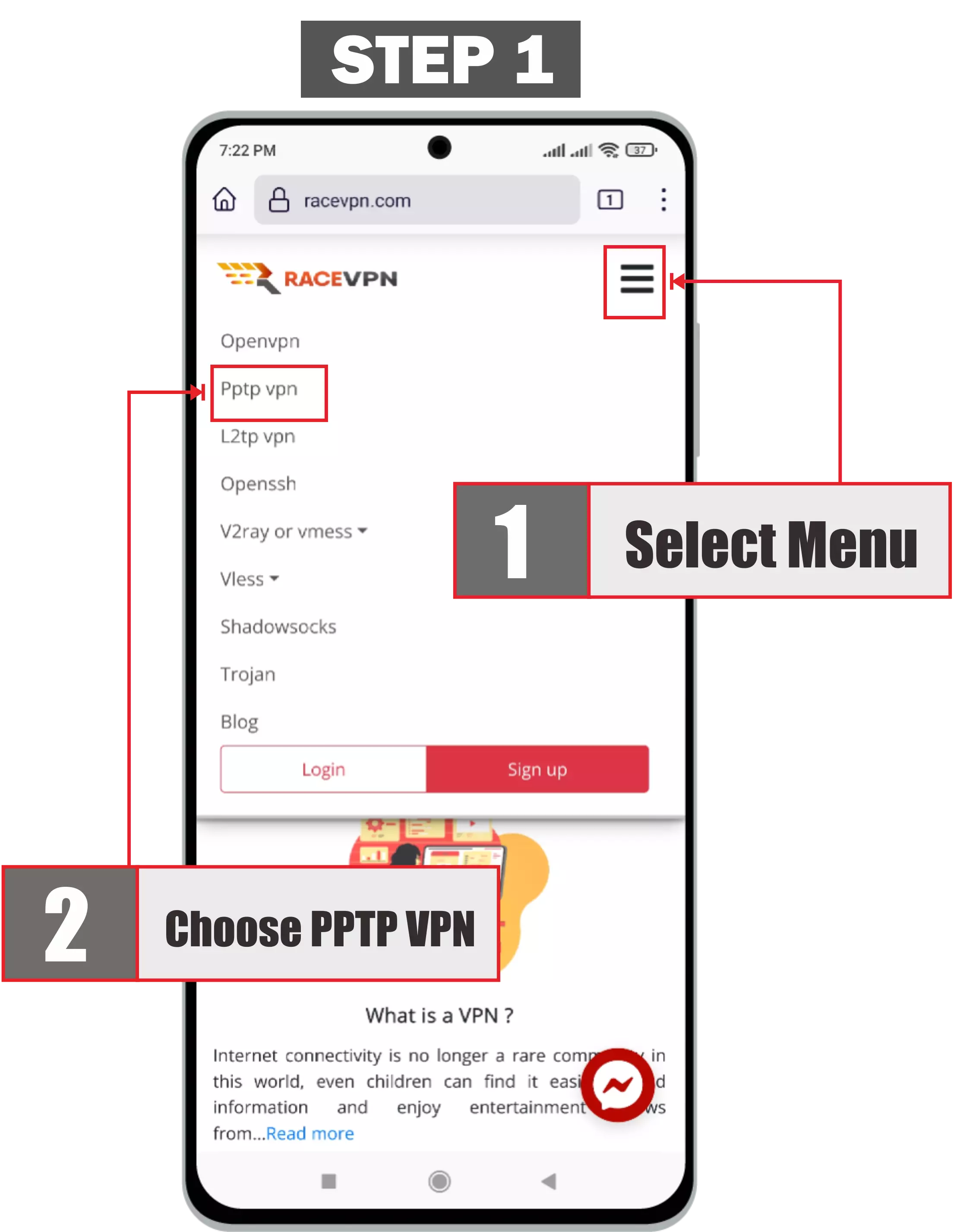 Open Android VPN Settings.
Add a New VPN Profile
Tap the option to add a new VPN profile. This creates a new manual VPN profile on your Android device.
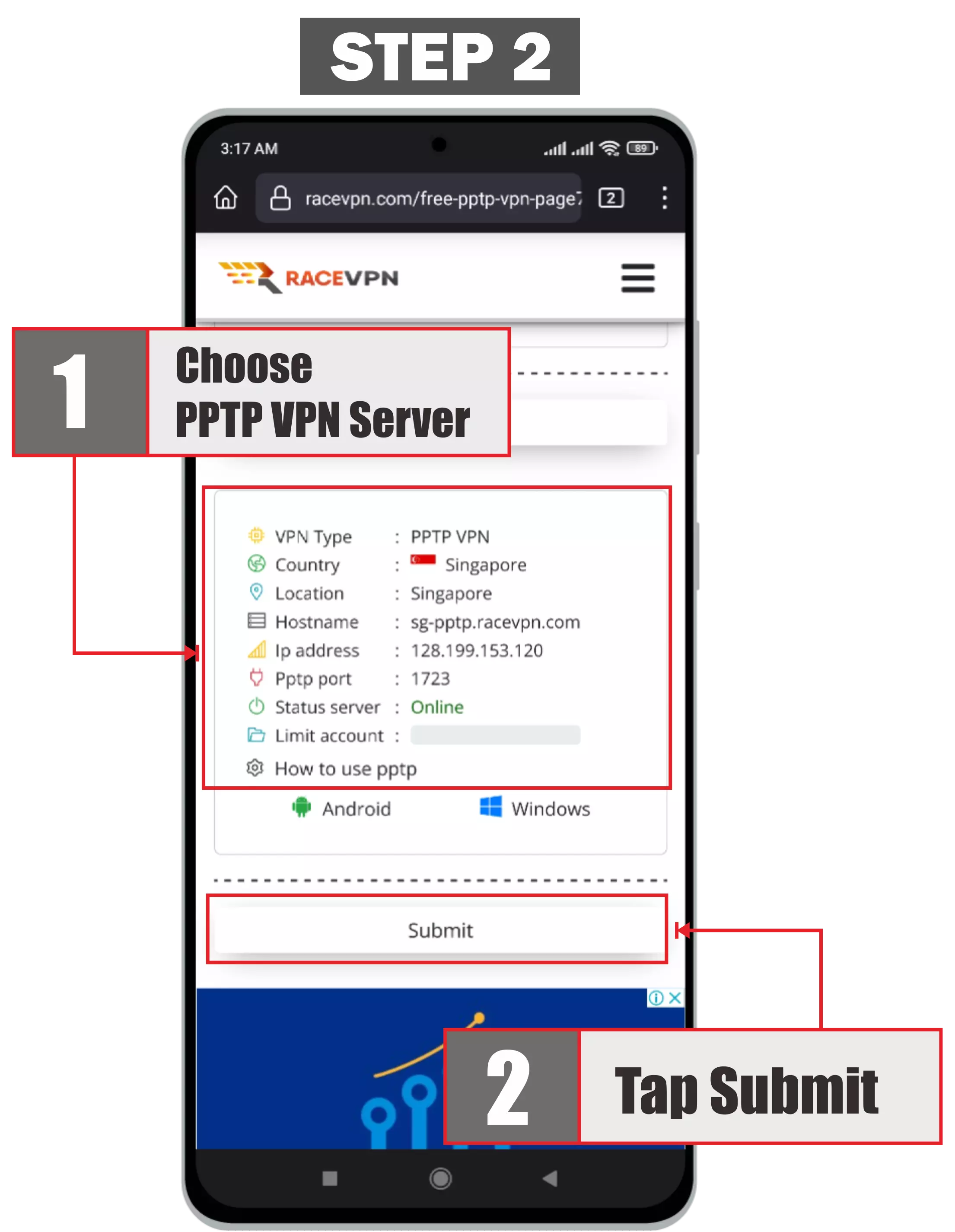 Add a New VPN Profile.
Choose PPTP as the VPN Type
Choose PPTP as the VPN type. PPTP is usually built into Android and does not require an additional VPN client application.
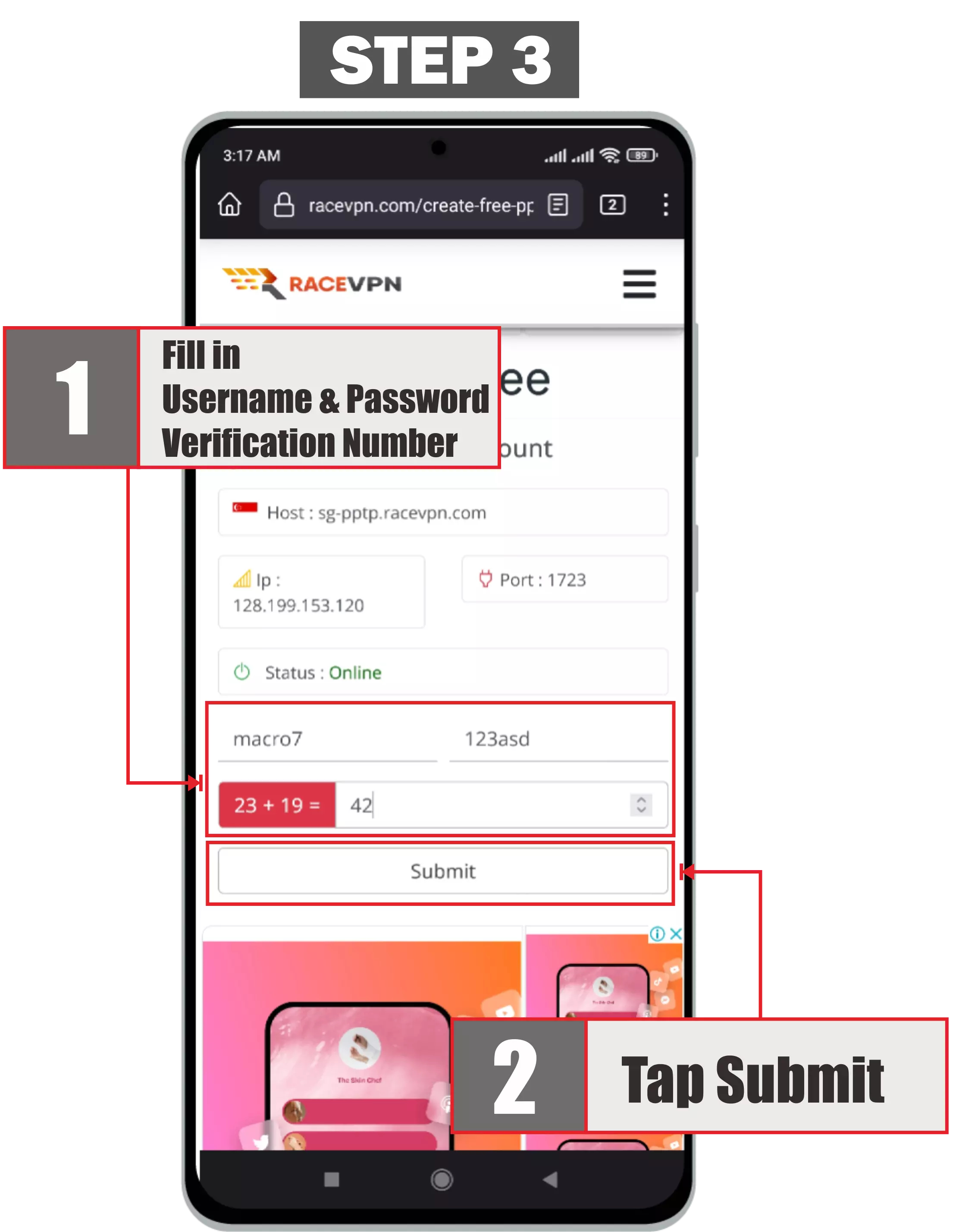 Choose PPTP as the VPN Type.
Enter the RaceVPN Server Address
Enter the RaceVPN server address from your account result page. You can use a profile name such as RaceVPN PPTP.
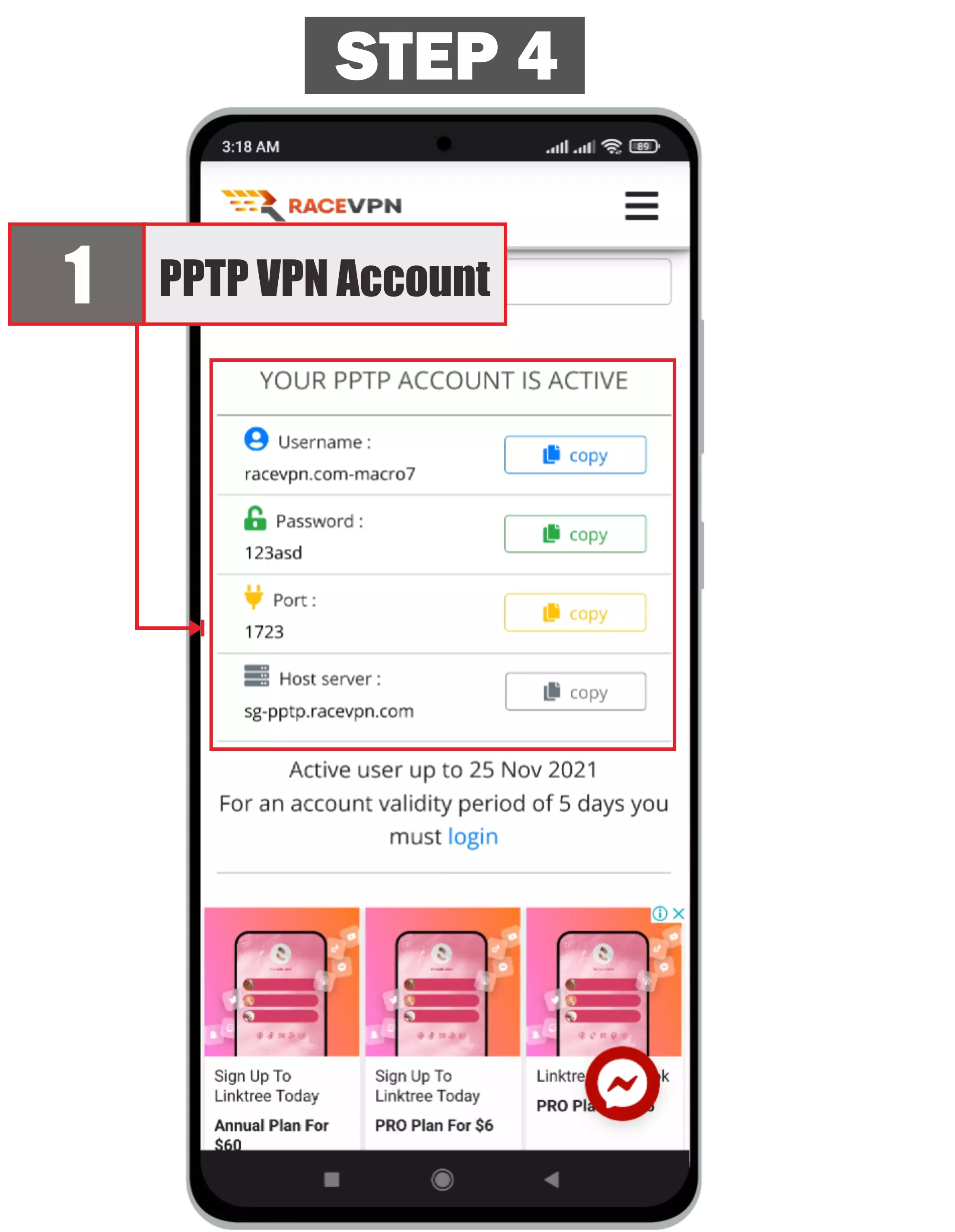 Enter the RaceVPN Server Address.
Save the PPTP Profile
Save the profile after the server address and VPN type are correct.
 Save the PPTP Profile.
Connect to the PPTP Profile
Open the saved VPN profile, enter the RaceVPN username and password, then tap Connect.
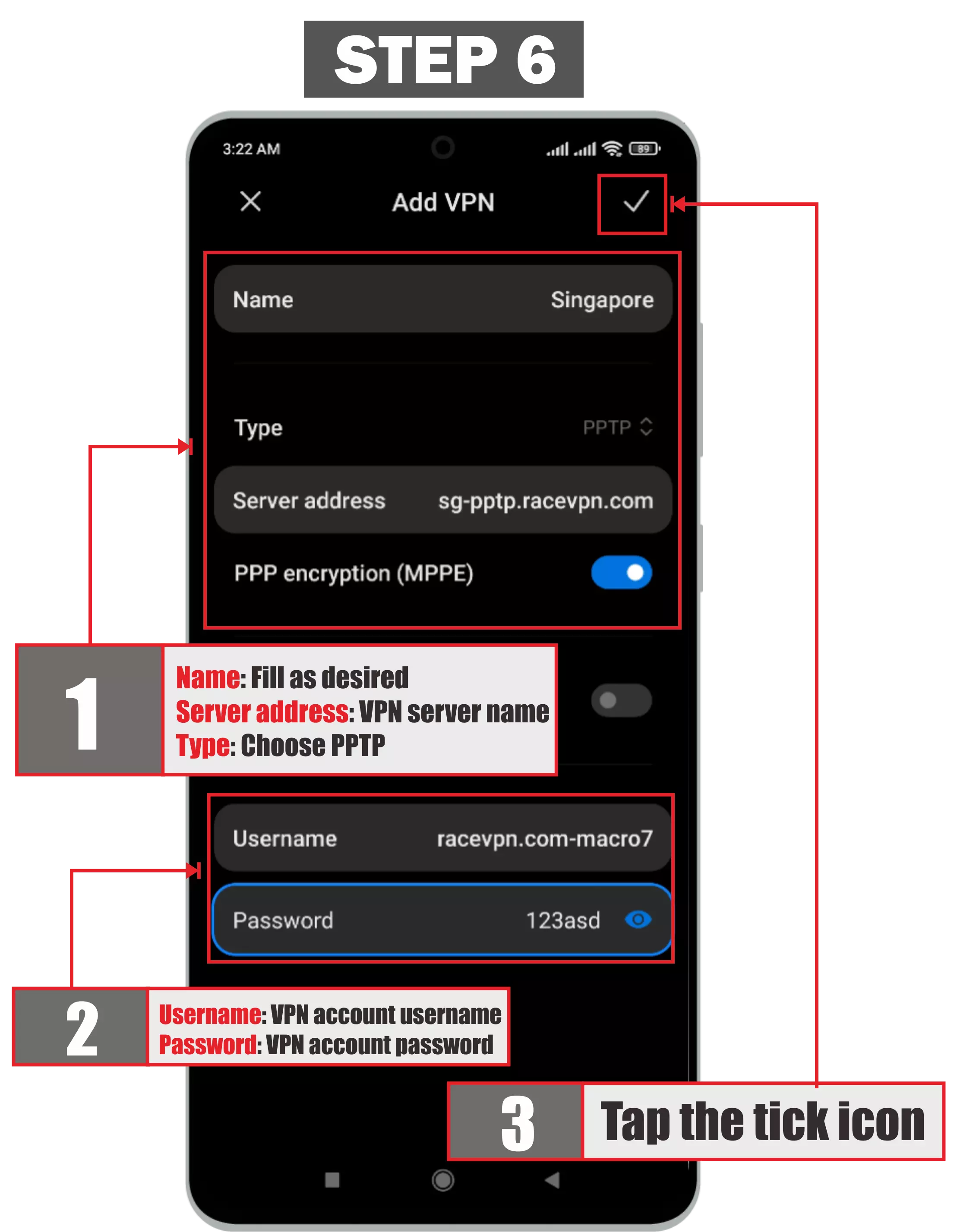 Connect to the PPTP Profile.
Confirm the VPN Connection
Check that the VPN status is connected before browsing. If it fails, verify the account details and try another server.
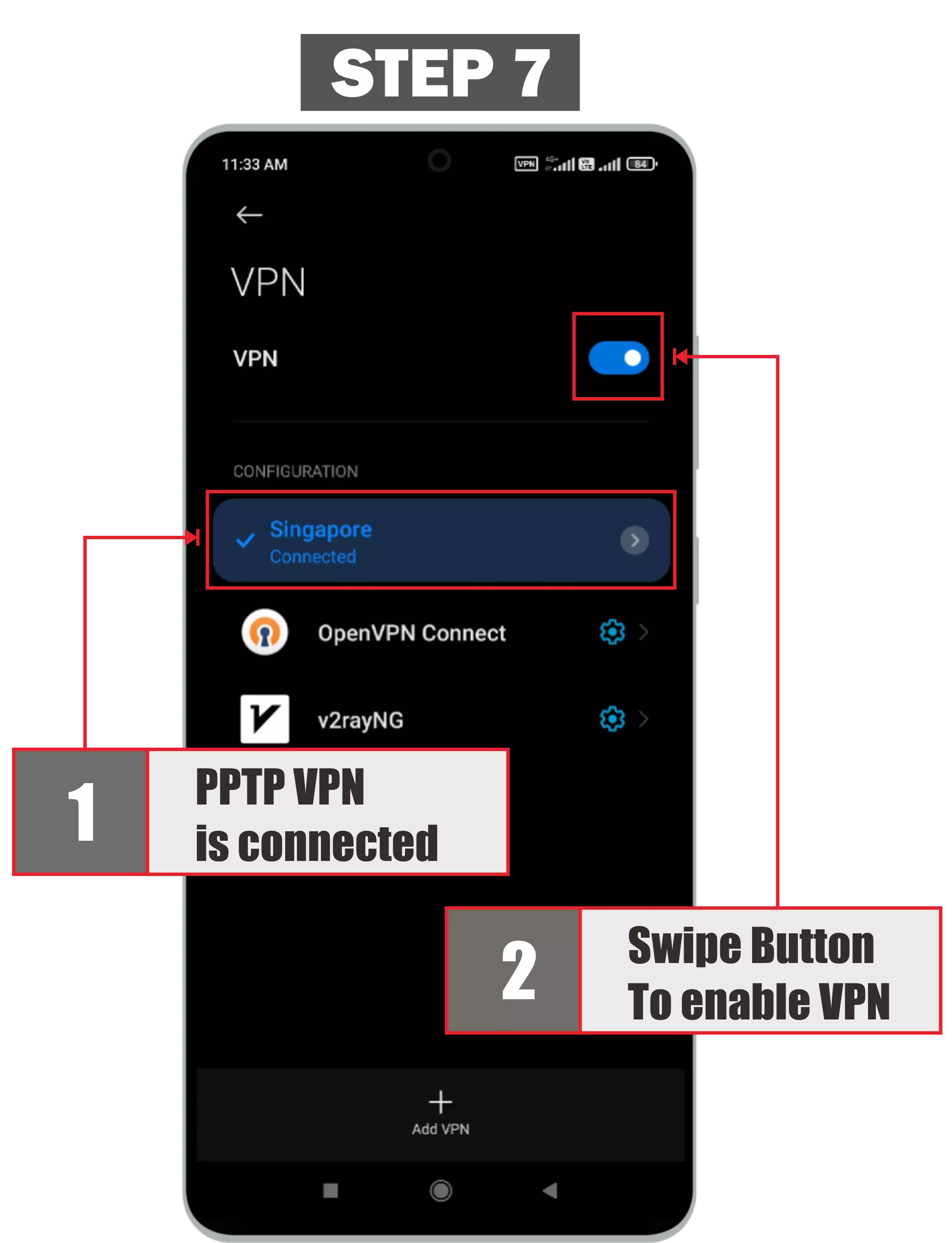 Confirm the VPN Connection.
Troubleshooting
Check that the server is online, your account has not expired, and your username or password is typed correctly.
Disconnect and reconnect, then try another available RaceVPN server location if needed.
Copy the account details again from the RaceVPN result page and avoid extra spaces.
Choose a server closer to your real location or try another less crowded country server.
Create a Free PPTP VPN Account
Need a fresh PPTP VPN configuration? Visit the RaceVPN PPTP VPN server page and create a free account from an available country server.
View Free PPTP VPN Servers