How to Use Shadowsocks on Android
Learn how to use a RaceVPN Shadowsocks account on Android by importing the connection URL or scanning the QR code.
Learn how to use a RaceVPN Shadowsocks account on Android by importing the connection URL or scanning the QR code.
What You Need
An active RaceVPN Shadowsocks account.
Shadowsocks connection URL or QR code.
A compatible Android Shadowsocks client.
A stable internet connection before connecting.
Step-by-Step Setup
Install a Shadowsocks Client
Install a compatible Shadowsocks client from a trusted app store.
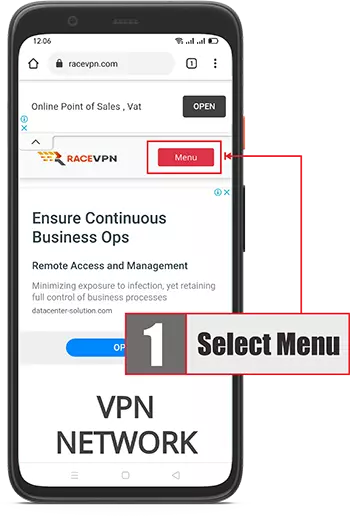 Install a Shadowsocks Client.
Prepare the RaceVPN Config
Create a RaceVPN Shadowsocks account and keep the connection URL or QR code ready.
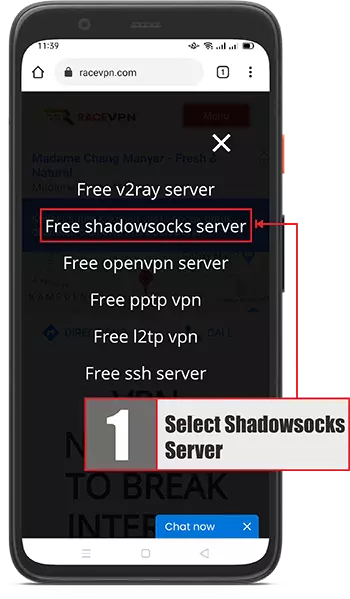 Prepare the RaceVPN Config.
Import the Config or QR Code
Use the app import option to scan a QR code or import the Shadowsocks URL from clipboard.
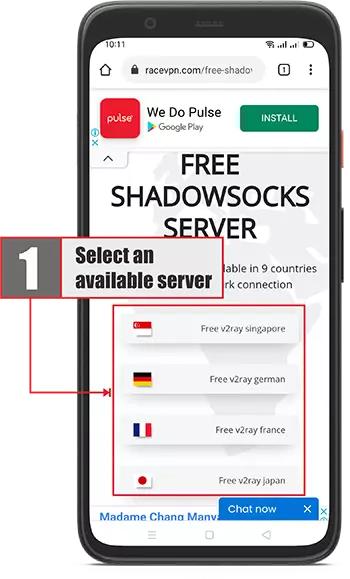 Import the Config or QR Code.
Check the Imported Profile
After importing, check that the profile name and server details appear correctly in the app.
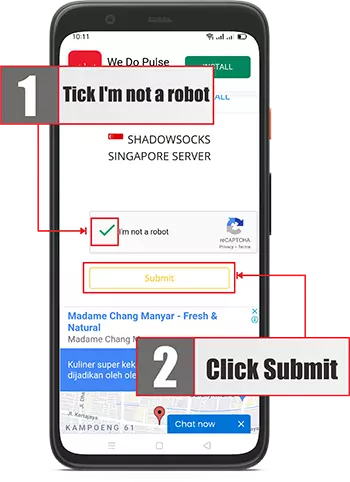 Check the Imported Profile.
Select the Server Profile
Select the RaceVPN Shadowsocks profile that you want to use.
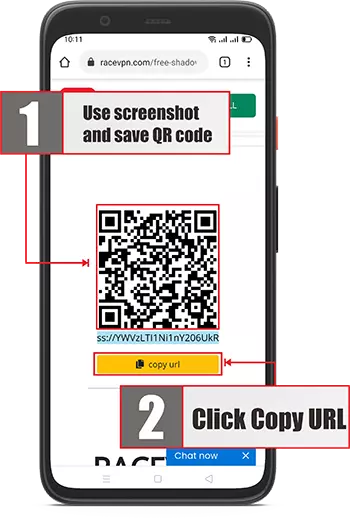 Select the Server Profile.
Connect Shadowsocks
Tap the connect button to start the Shadowsocks connection.
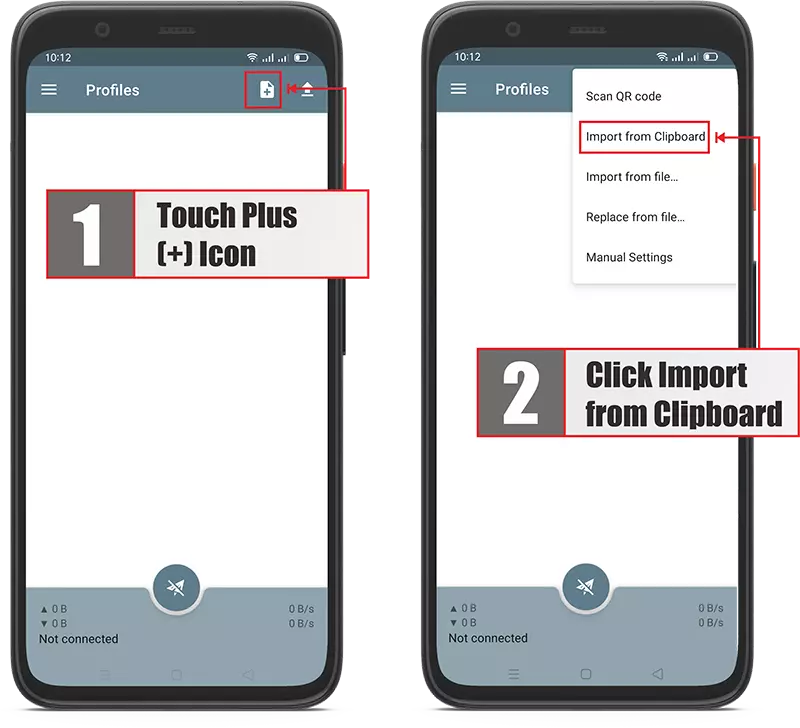 Connect Shadowsocks.
Test Browsing
Open a browser or app and confirm that the connection works normally.
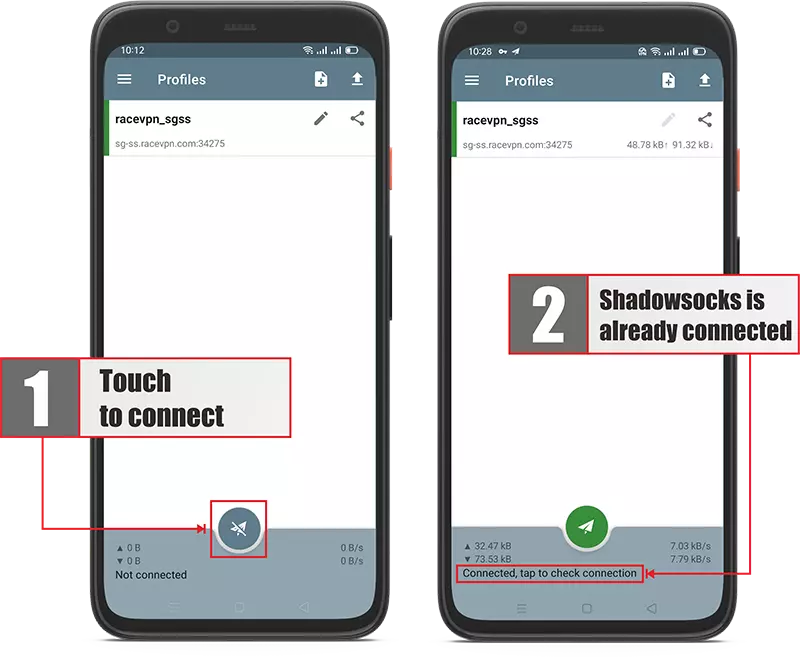 Test Browsing.
Troubleshooting
Check that the server is online, your account has not expired, and your username or password is typed correctly.
Disconnect and reconnect, then try another available RaceVPN server location if needed.
Copy the account details again from the RaceVPN result page and avoid extra spaces.
Choose a server closer to your real location or try another less crowded country server.
Create a Free Shadowsocks Account
Need a fresh Shadowsocks configuration? Visit the RaceVPN Shadowsocks server page and create a free account from an available country server.
View Free Shadowsocks Servers